Quick Recovery
The menu paths and screenshot below describe Sandboxie Control / Classic. In current Sandboxie Plus, SandMan configures recovery locations under Sandbox Options > File Recovery > Quick Recovery and opens a separate Quick Recovery window. The scan is independent of AutoRecover; see File Recovery Architecture.
Sandboxie Control > Sandbox Menu > Quick Recovery
Sandboxie Control > Tray Icon Menu > Quick Recovery
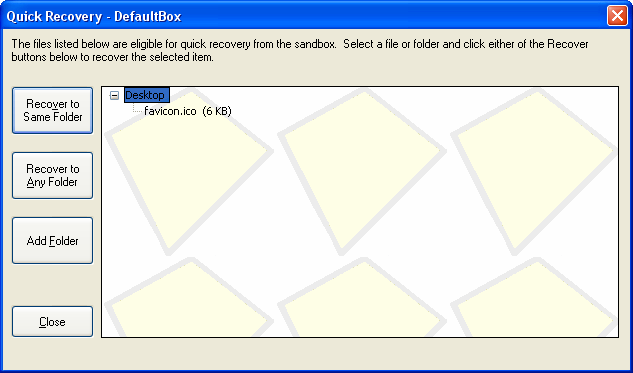
Sandboxed programs create files and folders inside the sandbox. It may be desirable to move some of these created files out of the sandbox. For instance, a document file downloaded by a sandboxed browser is saved into the sandbox, but that file should be extracted and placed in the Documents folder outside the sandbox.
The rudimentary approach is to use the regular, non-sandboxed Windows Explorer to navigate inside the folders that make up the sandbox. By using the Sandbox Menu > Sandbox > Explore Contents command, you can open a folder window (unsandboxed) with a view into the sandbox. You can then navigate in the depth of the sandbox folder, and cut sandboxed files in order to paste them somewhere else.
The Quick Recovery feature makes it easier to extract files (and even whole folders) that are created and saved by sandboxed programs. It scans configured literal recovery folders recursively and lists matching files (and folders). Wildcard RecoverFolder entries act as candidate filters rather than arbitrary scan roots. The window can also show all boxed files. Selected items can be recovered into the corresponding location outside the sandbox, or to another location.
To invoke the Quick Recovery window, use the Sandbox Menu > Sandbox > Quick Recovery command (or the corresponding command from the Tray Icon Menu). Quick Recovery also appears as part of the Delete Sandbox window.
The Quick Recovery Window
The central area which extends to the lower right corner of the window shows the quick-recoverable files and folders in a particular sandbox. Select a file or folder, and then click one of the two Recover to buttons on the left:
- Recover to Same Folder moves the file (or folder) from the sandbox to a corresponding location outside the sandbox. For example, the picture above shows the file favicon.ico in the sandboxed Desktop folder. Clicking this command on the file will move it to the real desktop folder.
- Recover to Any Folder first displays a Browse For Folder dialog box, then moves the file (or folder) to the folder selected in the dialog box.
These commands are also available if you invoke the context menu on a file or folder, typically by clicking the right mouse button on it.
Adding Folders to Quick Recovery
As noted, configured literal folders provide the normal Quick Recovery scan roots. Current new-box defaults include Desktop and Documents (Personal), plus Downloads where available; Favorites is not a current default. These are box-creation settings, not intrinsic scan roots for every box. Enabled templates can also supply effective RecoverFolder entries.
- You can add more folders using the Add Folder button.
- You can use Sandbox Settings > Recovery > Quick Recovery to add and remove folders.
- When Sandboxie Control is in Files And Folders View view, you can right-click a folder and select Add Folder to Quick Recovery.
In SandMan, UseAutoRecoverIgnoreForQuick can hide entries matching AutoRecoverIgnore. Show All Files and Show Ignored can expose otherwise hidden entries. This filtering does not require automatic recovery to be enabled.
Current SandMan performs the selected recovery as a host-side move. It may ask before overwriting an existing destination and reports failures; it does not guarantee that every recovery succeeds. Reusable alternate destinations are user-interface preferences, not RecoverFolder box rules.
Go to Delete Sandbox, Immediate Recovery, Sandboxie Control, Help Topics.